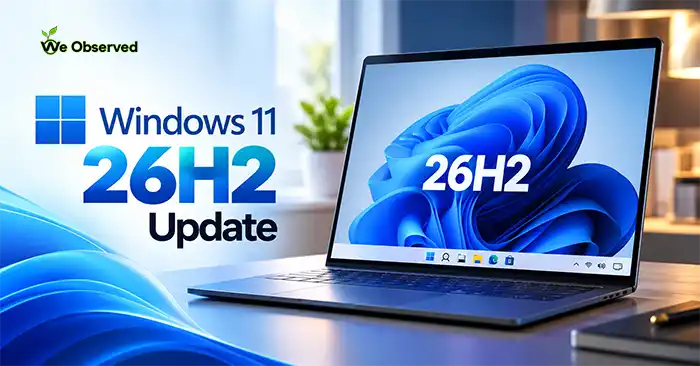
The Windows 11 26H2 update is a small, optional install for most PCs, and its main job is to extend your support window. Microsoft announced it on September 29, 2026 as the Windows 11 2026 Update. If you’re on 24H2 or 25H2, it takes a few minutes and one restart. Below are nine practical things to do with it, in roughly the order you’ll need them.
What does the Windows 11 26H2 update actually change?
Not much on the surface, and Microsoft says so. 26H2 sits on the same platform as 25H2 and 24H2, so it adds no visible features that those versions aren’t already getting. It acts as a checkpoint that switches on the features rolled out over the past 12 months.
Windows Latest was blunter. Its verdict was that there are no visible changes you can’t already have on 25H2 or even 24H2. The practical gain is the support clock, which we’ll get to.
Windows 11 26H2: New Features and How They Make Your PC Better
Windows 11 26H2 brings several improvements designed to make your PC easier to use, more secure, and more convenient. The changes include a customizable Start menu, a flexible taskbar, better file searching, improved accessibility, and smarter recovery tools.
Important: Some features may already be available through Windows updates. Availability also depends on your device, region, and rollout schedule.
1. A More Customizable Start Menu
What’s new:
- Change the Start menu layout and size.
- Choose how apps are displayed.
- Show or hide certain sections.
How it helps: You can organize the Start menu to find your favorite apps more easily and reduce clutter.
2. Move the Taskbar
What’s new:
- Move the taskbar to the top, left, or right of the screen.
- Use smaller icons to save screen space.
How it helps: You can arrange Windows to suit your preferences, especially if you use a small laptop screen.
Also check: 57 Essential Windows Keyboard Shortcuts to Boost Productivity
3. Better Windows Search
What’s new:
- Find apps more easily, even with typing mistakes.
- See clearer search results.
- Improve searches for frequently used files.
How it helps: Finding an app, document, or setting should take less time.
4. Improvements to File Explorer
What’s new:
- Faster loading of the Home section.
- Better remembering of folder views and sorting.
- Support for additional compressed file formats.
- AI tools for certain files on supported devices.
How it helps: Managing files becomes more convenient, with less need to change folder settings repeatedly.
5. More AI Features
What’s new:
- AI-assisted actions for supported files.
- More ways to interact with settings using natural language on supported PCs.
- Better tracking of certain AI tasks.
How it helps: Some tasks may become easier to complete without manually searching through menus. Many AI features require compatible hardware, software, or subscriptions.
6. Better Battery of Information in Task Manager
What’s new:
- More information about how apps use AI hardware on supported PCs.
How it helps: Most users won’t need this every day, but it can help identify which applications are using your computer’s AI processing resources.
7. Improved Security
What’s new:
- More control over blocking untrusted apps.
- Better tools for monitoring suspicious activity.
- Support for additional secure sign-in options.
How it helps: These changes can help protect your PC and accounts. Some features need to be enabled or require compatible hardware.
8. Easier PC Recovery
What’s new:
- More options for restoring a PC to a working state.
- Improved recovery tools for certain problems.
- Better restoration of supported settings when replacing a device.
How it helps: Fixing some Windows problems or setting up a replacement PC may require less manual work. Keep backups of important files, because recovery tools do not replace a proper backup.
9. Better Bluetooth, Camera, and Display Connections
What’s new:
- Improvements to Bluetooth audio and microphone behavior.
- Better support for using cameras across multiple apps in supported setups.
- Reliability improvements for certain USB4 docks and displays.
How it helps: Headphones, microphones, webcams, and external monitors may work more reliably, depending on your hardware and drivers.
Must Check:Speed Up Your Windows Computer in less than 10 Seconds
10. Improved Accessibility
What’s new:
- More control over screen magnification.
- Improvements to Narrator and Braille support.
- Better voice commands on supported devices.
How it helps: Windows becomes easier to use for people who need larger text, screen-reading tools, Braille support, or voice control.
11. Less Disruption From Updates
What’s new:
- Some updates can be combined to reduce separate installation steps.
- Improved behavior when the PC returns to sleep after updating.
How it helps: Updates may interrupt your work less often, although some important updates can still require a separate restart.
12. Better Backup for Work PCs
What’s new:
- Eligible business computers can restore supported settings and Microsoft Store app lists when recovering or replacing a device.
How it helps: Setting up a replacement work computer can be quicker. Not every app, file, or setting is automatically restored.
13. More Controls for Businesses
What’s new:
- Additional tools for IT teams to manage, secure, and restore company computers.
How it helps: Employees may spend less time waiting for work PCs to be configured or repaired. Most home users won’t notice these changes directly.
What Has Been Removed?
Microsoft lists the WMIC command-line utility as removed, but it was already unavailable in Windows 11 version 24H2 and later. Most everyday users are unlikely to notice this change.
Is Windows 11 26H2 Worth Updating?
For everyday users, the most useful changes are likely to be:
- More taskbar and Start menu customization
- Easier searching for apps and files
- A more convenient File Explorer
- Better recovery options
- Improved connections with supported devices
- More accessibility features
You may already have some of these improvements if you regularly install Windows updates.
Before Updating
- Open Settings > Windows Update and check whether the update is available.
- Back up important files.
- Check compatibility if you rely on specialist software or accessories.
So, the story in short is….
Windows 11 26H2 focuses on making everyday tasks a little easier. It offers more customization, better ways to find files, improved recovery tools, and useful accessibility and security updates.
You shouldn’t expect every feature to appear on every PC. Some are limited to compatible devices, business computers, or users with specific subscriptions.
For most people, the biggest benefit is a Windows experience that is more flexible and convenient, rather than a completely different operating system.
Must Read:PS5 Games on Xbox Series X: How PS5X Works
Nine things worth doing with 26H2
1. Check which version you’re on first
Go to Settings > System > About and look at the version line. This decides everything else. If it says 24H2, 25H2 or 23H2 you’re on one path. If you bought a new Snapdragon X2 laptop this year, you may be on 26H1 and should skip to idea 7.
2. Move off 24H2 now
This is the one with a deadline. October 13, 2026 was the last Patch Tuesday for 24H2 on Home and Pro, so those PCs have stopped getting security fixes. The move to 26H2 is the cheap way back into support.
3. Take the update through Windows Update
Open Settings > Windows Update and turn on “Get the latest updates as soon as they’re available.” Then check for updates. It’s an optional install, so if you want it early you have to switch manually. The rollout is gradual, so your PC may not see it on day one.
4. Use the Installation Assistant or an ISO if it doesn’t show up
If Windows Update stays quiet, you can install via the Installation Assistant, an ISO, or USB media. On 24H2 or 25H2, the package is tiny. The enablement package for 64-bit PCs is a 174 KB file, KB5121794. That’s a download size, not a promise about how long the restart takes.
5. Treat it as a way to catch up on missed features
If your PC hasn’t picked up recent features, this is where they land. TechPowerUp lists a smarter File Explorer with summarization and more archive formats, plus Windows Search that checks your files before the web and copes better with typos. Frequently used folders get indexed automatically. Some of the AI-flavored extras depend on Copilot+ hardware, so don’t expect every item on a ten-year-old laptop.
6. Revisit the Start menu, taskbar and accessibility settings
The Start menu and taskbar now offer new customization options, positioning changes and a smaller view. If you’ve been grumbling about Start since 2021, spend five minutes in Settings > Personalization. Accessibility got attention too: Magnifier gains new zoom and screen tint options, and Narrator adds a Braille Viewer.
7. Don’t force 26H2 onto a Snapdragon X2 laptop
This is the trap. Microsoft shipped a separate 26H1 release for new Arm hardware, and 26H1 is built on a different Windows core than 24H2, 25H2 and 26H2. Techdows’ advice is to leave a 26H1 PC alone and keep installing monthly updates. Microsoft has said 26H1 devices will get a path to update in a future Windows release. If you’re laptop shopping, check the version before you buy. [LINK: how to check what Windows version a new laptop ships with]
8. Plan a full upgrade if you’re on 23H2 or older
There’s no tiny package for you. Hardware still running 23H2 or older needs an in-place upgrade with a full reinstallation. Back up first, and do it on a day when you can afford the downtime.
9. Stop dragging out Windows 10
Windows 11 is now the clear majority. StatCounter put it at 71.44% of Windows systems worldwide in September 2026, with Windows 10 at 27.82%. Microsoft doesn’t publish its own usage figures, so treat StatCounter’s numbers as estimates.
Staying on Windows 10 now costs real money for businesses. Year two of commercial Extended Security Updates runs from October 14, 2026 through October 12, 2027 at $122 per device, double the $61 first-year price. Home users have a cheaper route. Options include syncing settings through Windows Backup at no cost, redeeming 1,000 Microsoft Rewards points, or paying $30 once. Microsoft extended that consumer program to October 2027. Those are US dollar figures, and I haven’t found UK pricing.
Must check: 10 Python Automation Ideas for Office Work (With Steps)
How long does 26H2 stay supported?
This is the real reason to update. From September 29, 2026, Enterprise and Education editions get 36 months of servicing for 26H2, and Home and Pro get 24 months. That puts Home and Pro support in October 2028.
Sources disagree on the exact day. Pureinfotech lists October 10, 2028, while another tracker gives October 9, 2028. Check Microsoft’s lifecycle page if you need the precise date.
25H2 isn’t in trouble yet, but it ends a year earlier. Home and Pro 25H2 stop getting security updates in October 2027. Since the install is the same size either way, there’s little reason to stay behind.
FAQ
Do I need to reinstall Windows to get the Windows 11 26H2 update?
Not if you’re on 24H2 or 25H2. It installs as a cumulative update without a reinstall. Only 23H2 and older need a full in-place upgrade.
Is the 26H2 update safe to install?
Microsoft calls it low-disruption and says it has no known compatibility concerns. Windows Central reports it should be quick and has no bugs to be aware of. I’d still back up first, as with any feature update.
Why can’t my new Snapdragon X2 laptop get 26H2?
It probably shipped with 26H1, which uses a different Windows core. Microsoft’s release health page says 26H1 devices can’t update to 26H2. You keep getting monthly security updates in the meantime.
Will 26H2 make my PC faster?
There’s no verified benchmark data I can point to. One outlet mentions a 26H2 RAM usage reduction, but the excerpt I found doesn’t give figures.
When is the next Windows 11 feature update?
Microsoft says it continues the annual cadence, with a new feature update in the second half of each calendar year. That points to another release in autumn 2027, though Microsoft hasn’t named it in anything I found.