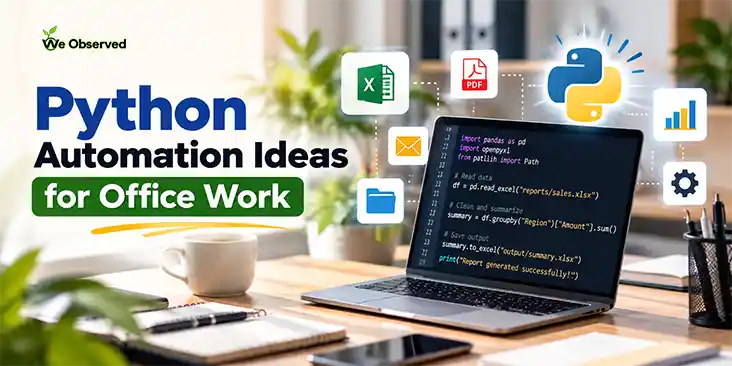
You can script a surprising amount of desk work with Python, and the best first targets are the ones you repeat weekly on files you already have: merging spreadsheets, renaming files, filling reports. This guide gives you ten Python automation ideas for office work, each with the library to use and the steps to build it, plus a setup you can finish in about 20 minutes.
I personally do all the file renaming and link extraction tasks for our website StuQi. Additionally, most of the data uploaded on The Indian Feather is also handled with similar Python scripts.
Which office tasks are worth automating with Python?
Pick tasks that follow fixed rules, happen on a schedule, and involve digital files. If you can write the steps down as “open this, copy that, save there,” a script can do them.
The time at stake is real. Slack’s 2024 survey found desk workers spend 41% of their time on low-value, repetitive tasks, as summarized by Docsumo. A June 2025 Stanford study found workers want automation to handle repetitive, tedious work rather than creative or strategic work. The study surveyed 1,500 workers across 104 occupations, per PPC Land’s write-up.
A quick filter: if a task takes under five minutes and you do it twice a year, skip it. If it takes 30 minutes and you do it every Monday, that’s your first script.
How do I set up Python for office automation?
- Install Python. Download the current release from python.org. Python 3.14 was released on 7 October 2025, and 3.14.8, an expedited security release, followed on September 30, 2026 (python.org). On Windows, tick “Add Python to PATH” in the installer.
- Pick an editor. VS Code is free and fine. Anything that runs a file and shows errors will do.
- Make a project folder with a virtual environment. Run python -m venv .venv in the folder, then activate it. This keeps each automation’s libraries separate.
- Install the core libraries. Run pip install pandas openpyxl. Without openpyxl, pandas raises an error when reading .xlsx files, according to AskPython.
- Work on copies. Point every first run at a duplicate folder, never your live files.
If your work laptop locks down software installs, ask IT before you start. Some US and UK employers block pip or restrict scripts, and it’s easier to get approval up front than to explain a surprise.
The 10 jobs, step by step
1. Merge dozens of Excel or CSV files into one
This is the classic starter. Use pathlib to list every file in a folder, read each with pandas, and join them with pd.concat. Save the result with to_excel. If one workbook has many tabs, setting sheet_name to None returns a dictionary containing a DataFrame for each sheet, per the pandas docs.
One heads-up: the development docs say the default xlsx engine will change from openpyxl to calamine in a future version, and advise passing the engine explicitly (pandas dev docs). Add engine=”openpyxl” to your read calls and your script won’t change behavior on you.
2. Clean up messy spreadsheets
Trim stray spaces, standardize capitalization, remove duplicate rows, and fix dates that arrive as text. In pandas that’s a handful of lines: str.strip(), drop_duplicates(), and pd.to_datetime(). Watch date order. US sheets use month/day and UK sheets use day/month, so set dayfirst=True explicitly for UK data.
3. Build the weekly report
Read your data, group it with groupby, and write the summary to a new workbook. Use openpyxl afterward to set column widths, bold headers, and number formats. Run it, open the file, check it, send it. The check stays manual at first.
4. Rename and sort files into folders
Downloads folders and shared drives fill up with files like “scan0042.pdf.” Loop through a folder with pathlib, build a new name from the date or a keyword, and move each file with shutil. Print what you plan to do before you do it. Delete the print step once you trust the output.
5. Pull text and tables out of PDFs
Invoices, statements and forms often hide data in PDFs. The pypdf and pdfplumber libraries read text and tables from PDFs that contain real text. Scanned images need OCR first, which adds a step. Start with a single clean PDF, find the pattern, then loop over the folder.
6. Fill Word templates and mail-merge letters
Make a Word document with placeholders like {{name}}, then use python-docx to swap in values from a spreadsheet row and save one file per person. It suits offer letters, certificates, and client summaries.
7. Send routine emails from a list
Python’s built-in smtplib and email modules can send reminders or reports with attachments. Store your password in an environment variable, never in the script. Many Microsoft 365 and Google Workspace accounts require app passwords or admin approval for SMTP, so check before you spend an hour debugging a login error.
8. Collect data from websites
With requests and BeautifulSoup you can pull prices, listings, or public notices into a spreadsheet. Read the site’s terms first. If it offers an API or a download button, use that.
9. Update Google Sheets automatically
The gspread library reads and writes Sheets through a Google service account. Setup takes longer than the script itself: create a Google Cloud project, enable the Sheets API, download the credentials file, and share the sheet with the service account’s email. Then appending a row takes a single line.
10. Drive old software with mouse and keyboard scripts
When a legacy app has no export or API, PyAutoGUI can click and type for you. It’s fragile. A moved window or a pop-up breaks it, so treat it as a last resort and add a short pause between actions.
Must Check:Simple Hackathon Project Ideas (39+ Unique Ideas for 2026)
How do I run a Python script automatically?
Once a script works by hand, schedule it. On Windows, use Task Scheduler and point it at the python.exe inside your virtual environment, with your script as the argument. On macOS or Linux, use cron or launchd. Have the script write a log file with a timestamp and any errors, because a silent failure is worse than no automation.
If your laptop is asleep at 7 a.m., the job won’t run. For anything important, use an always-on machine or a company server, with IT’s blessing.
What should I check before automating work tasks?
- Test on copies. Always keep an untouched original.
- Add a dry-run mode. Have the script print changes before it makes them.
- Keep credentials out of code. Use environment variables or a secrets manager.
- Mind personal data. If files contain customer or employee details, check your employer’s policy. In the UK, that also means UK GDPR obligations.
- Spot-check the output. Compare a few rows against the original by hand for the first few weeks.
AI chat tools can draft these scripts, and Stack Overflow reports 80% of developers now use AI tools in their workflows (Stack Overflow, 2025). Read every line before you run it, and never paste confidential data into a public tool.
Where can I learn this without paying?
Start with Al Sweigart’s Automate the Boring Stuff with Python. The author’s site says it’s free to read under a Creative Commons license. The third edition covers organizing files, web scraping, Excel, Google Sheets, PDF and Word documents, and sending email, per OnlineProgrammingBooks. That maps closely to the list above. If you prefer paper, the print book with a free ebook is $59.99 from the publisher, No Starch Press (No Starch Press). I didn’t find a UK price from the publisher, so check UK retailers.
You’re also in good company. Python’s usage rose 7 percentage points from 2024 to 2025 in the 2025 Stack Overflow Developer Survey, and it reached 57.9% among developers, according to ByteIota’s analysis. Help, examples, and libraries are easy to find.
FAQ
Do I need to know how to code to automate office tasks with Python?
No, but you’ll need to learn the basics: variables, loops, and reading files. The free third edition of Automate the Boring Stuff is written for total beginners. Most people get a first useful script, like merging files, working within a few evenings.
Is Python better than Excel macros?
It depends on the job.